
No articles found for “”.
Employee-led onboarding
Instead of HR keying in every employee's tax, bank, and pension details, you can invite each employee to fill in their own from the portal. They submit; you review and approve.
Sending invitations
On the Employees page, click Invite new joiner. Enter the joiner's Full name and Email, choose the Employment type, and add their role, department, start date and gross monthly salary if you know them. In Deadline (days), choose how long they have to finish, between 3 and 30 days (7 unless you change it). Click Send invitation. SpireSlip emails the joiner a link to the onboarding form in the portal, and the link works until the deadline. Owners and admins can send invitations. To give portal access to people who are already on your employee list, use Invite selected to portal instead (see Inviting employees to the portal in bulk).
The 5-step portal form
- Personal details, full name, date of birth, phone, address.
- Tax and pension, TIN, PFA, PFA account number, and whether they choose to contribute to NHF.
- Bank details, bank, account number. The account name is checked through your company's payment connection where one is available. If it cannot be checked, the employee can still save the account and you check it on their profile after approval.
- Employment review, role, start date, gross salary, read-only from the HR record.
- Submit, confirm and submit for review.
The HR verification queue
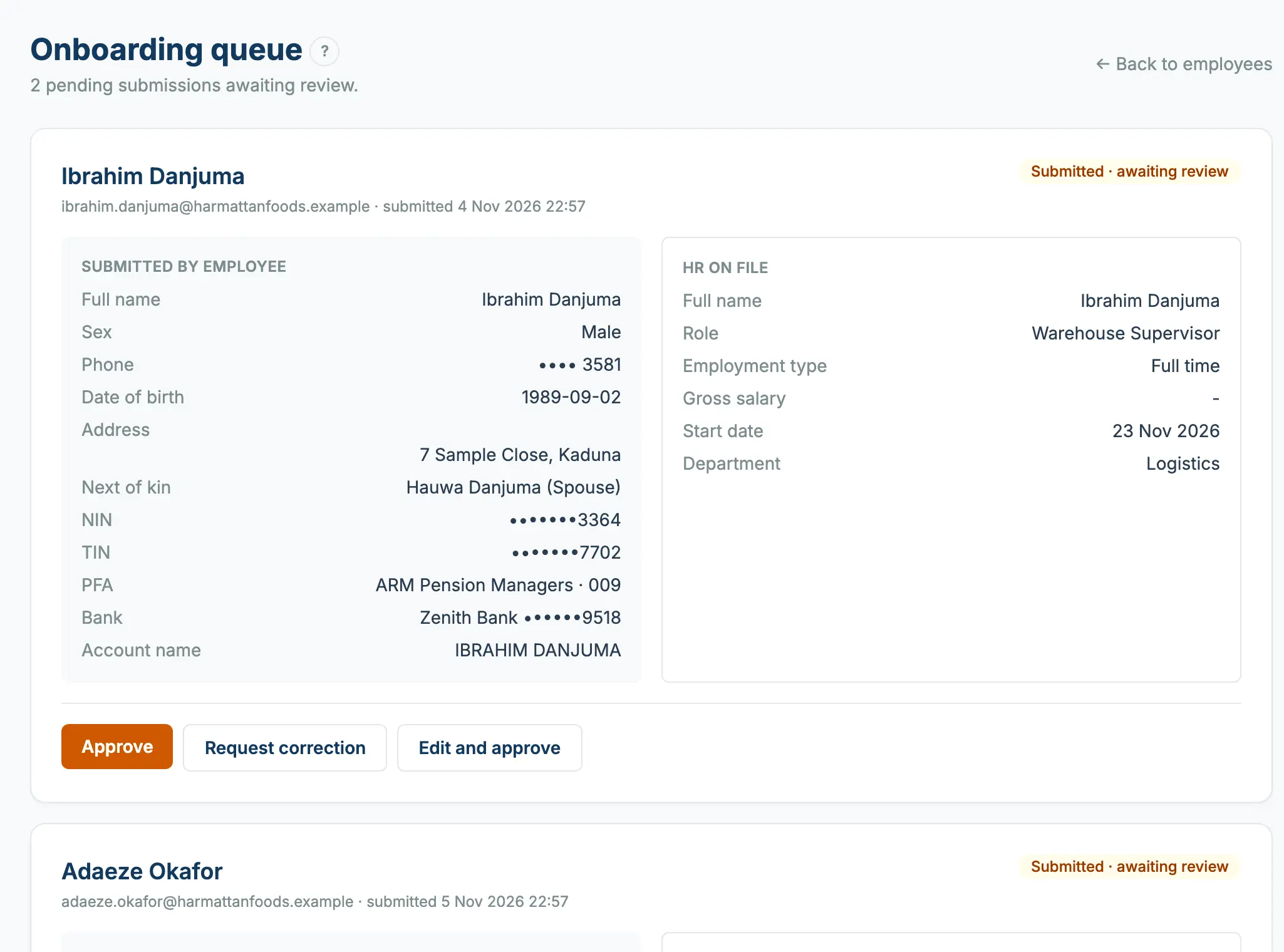
Submissions land in the onboarding queue: on the Employees page, click Verification queue. Three actions per submission:
- Approve, accept as submitted. Approving does not verify the bank account: if the account name was not checked when the employee entered it, it stays unverified until you click Verify next to the bank account on their profile.
- Request correction, send back with a note explaining what to fix.
- Edit and approve, fix a small typo yourself, then approve in one step.
Automated reminders
Employees who have not submitted get a reminder email 3 days after the invitation was sent, and another when 1 day or less is left. The invitation expires at the deadline you chose (with the usual 7 days, that is a reminder on day 3, another on day 6, and expiry on day 7). To give someone more time, send a new invitation.
The account owner gets one email per company, not one per person: on the day someone's link has less than 24 hours left, a summary lists everyone in that position, with how long they have been waiting and a button to your onboarding queue. Every Monday a weekly roundup lists everyone still waiting and anyone whose link expired that week, so you can send them a new link. You can switch these emails off in Settings → Notifications (Onboarding not finished). When links expire, admins also get one in-app notice per company that opens the onboarding queue.
See also Inviting employees to the portal in bulk and How employees complete their own onboarding.