
No articles found for “”.
Bulk employee import (CSV or Excel)
Moving from another HR system, or onboarding a large batch at once? Import your employees from a CSV or Excel file in a few clicks.
Plan requirement: bulk employee import (CSV or Excel) is available on the Plus plan and above. On the Core plan, add employees individually or upgrade to import in bulk.
Use the SpireSlip template
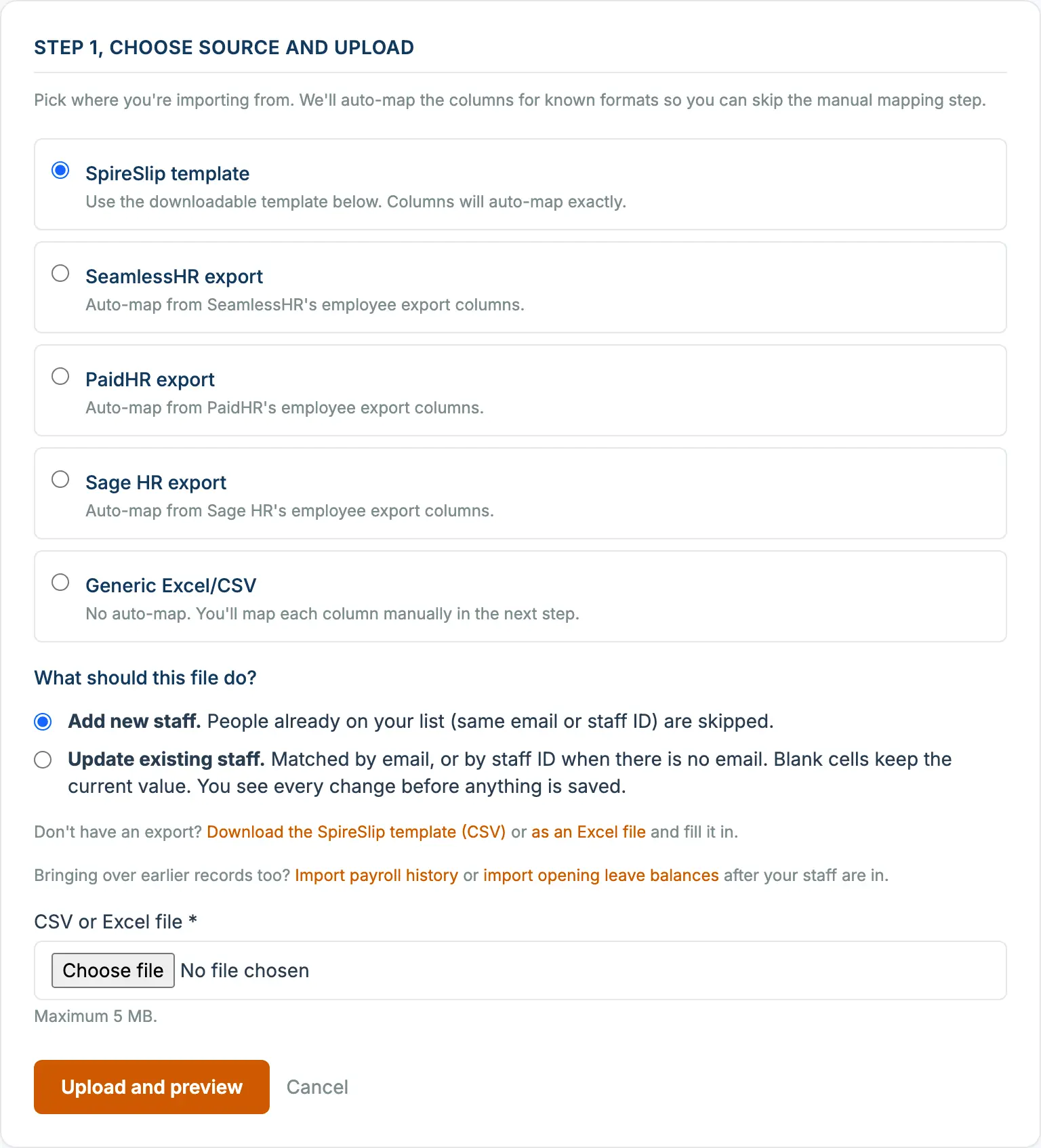
On the Employees page, click Import employees. Under Don't have an export?, click Download the SpireSlip template (CSV), or as an Excel file. The template has every column we accept, in the order we expect them, with one example row to show the format. The Excel version also has a Columns sheet that lists every column with whether it is required when adding staff, the values it accepts and what a blank cell means, including your company's own custom fields and pay items.
Or import from SeamlessHR, PaidHR, or Sage HR
SpireSlip recognises the export format of all three common Nigerian HR platforms. Upload the file straight from those systems, choose which system it came from on the upload screen, and the importer maps the columns for you.
The column mapper
After upload, you'll see a side-by-side mapper: your file's columns on the left, SpireSlip fields on the right. SpireSlip pre-fills every match it can find, including common header names such as "Job Title", "Employment Type", "Start Date", "PFA" and "Account Number". If your file has both a work email and a personal email column, the work email is used. Use the dropdown on any row to change a match. Required fields are marked with an asterisk.
Only a few things are needed to add someone: their full name, their employment type, an email or a staff ID (a staff ID is required when there is no email), and their salary. Staff paid by the day, by the hour or by commission only need their rate instead of a salary. Bank details, NIN, TIN, PFA and RSA PIN can be added later: none of them stops someone being created or included in a payroll run. Bank accounts added by import start unverified. An account must be verified before SpireSlip can send salaries to it; recording a run as paid outside SpireSlip does not need verified accounts.
RSA PIN and PFA code
The RSA PIN column is the employee's own pension PIN (PEN followed by 12 digits). Headers such as "RSA PIN", "RSA Number" or "Pension PIN" map to it. The PFA code column is the code of the pension fund administrator, not the employee's PIN. A PIN in another shape is still imported exactly as written, and the summary at the end lists how many need a check under "Check RSA PIN". NIN, TIN, RSA PIN and account number are encrypted as soon as they are saved.
Salary amounts and employment type
Salary amounts can be written with or without commas and kobo, for example 487500, 487,500 or 487,500.00, with or without a Naira sign. Amounts must be positive; a negative amount is flagged as an error instead of being imported.
For employment type, everyday spellings are accepted: Full-time, Part time, Contract or Contractor, and Permanent (treated as full-time).
Weekly and bi-weekly staff
For staff paid weekly or every two weeks, put their pay per pay period in the Gross pay per pay period column (in the template, in CSV and Excel). It is kept as typed, and each weekly run pays exactly that amount. If a weekly or bi-weekly row has its salary in the monthly column instead, the preview lists it and asks you to confirm it really is a monthly figure before anything is imported. Give each row one salary column only.
Monthly or annual salary
The salary column is the monthly gross salary, whatever the person's pay schedule (staff on a weekly or bi-weekly schedule can be given a per-pay-period column instead, see above). If your file has annual salaries instead, map that column to Gross annual salary. Columns with "annual" or "yearly" in the header are matched to it for you, and can never be used as the monthly figure.
Give each employee one or the other, not both. An annual amount is divided by 12 and rounded to the nearest kobo, so ₦1,000,000 a year becomes ₦83,333.33 a month. The preview shows the monthly figure next to the annual amount it came from, so you can check it before you confirm the import.
Pay and tax settings
The import can set everything the employee form sets for pay and tax, with the same rules. All of these columns are optional unless stated.
- Withholding type for contractors: none, individual or corporate (the Columns sheet in the Excel template shows the rate for each). It is required for every contractor row, unless the row gives a contractor worker category that sets it. The preview shows the rate each contractor will have. On an employee row it is ignored and the preview says so.
- Worker category: the category's name exactly as in your company's list of worker categories (Employees, Worker categories). It must match the person's employment type. It sets the same defaults as choosing it on the form: NHF, and for contractors the withholding type. In a private sector company a category never switches NHF on by itself: a person whose NHF is off keeps it off unless the row also says NHF yes, and the result message says how many were left unchanged.
- NHF applicable, PAYE applicable and Pension applicable: yes or no. Blank means the default: the worker category's, otherwise yes for PAYE and pension. For NHF in a private sector company a blank cell always means no, whatever the worker category says; in a public sector company it means the category's default, otherwise yes. NHF yes in a private sector company records that the employee chose to contribute, with the day of the import as the date recorded (not the date the employee agreed); NHF no on a new person there needs no reason (Not opted in is recorded). These do not apply to contractors.
- Reasons: when a row switches PAYE, pension or NHF off, or adds or changes someone to a contractor, give the reason in Reason PAYE does not apply, Reason pension does not apply, Reason NHF does not apply or Why this person is a contractor; for contractor type none, also Why no withholding tax applies. Write a code from the list or its wording, and "code: note" where the reason needs a note (for example "exempt_law: the provision you rely on"). A row without a valid reason is not imported; the preview lists the codes you can use. The reason is shown at approval and on the payslip, and each one is recorded for the person.
- Basic salary, Housing allowance and Transport allowance: an optional split of the salary, written in the same terms as the salary column you used (monthly, annual or per pay period). When you give basic, the three must add up to the gross salary; housing and transport together can never be more than the gross. Without a split, any part of the salary not given as housing or transport is treated as basic, as on the form.
- Home office allowance: an amount per month.
- Bank code: the bank's code, so the account can be verified without choosing the bank again. You can leave it blank and give a bank name SpireSlip recognises instead. A row with an account number but no bank SpireSlip can recognise (or a bank name that matches more than one bank) is refused with a message, so no account is saved without its bank. When updating, a blank bank code never removes the code already on file.
Weekly and bi-weekly pay schedules can only be imported on a plan that includes them; on other plans those rows are listed as errors so you can choose monthly, and nothing is changed to monthly without you seeing it. The preview shows, for every row, what its settings come to and anything that was ignored.
Other details
- Date of birth, Probation months (0 to 24; contractors have none), Grade and Cost centre. For contractors, Contract end date and Contract renewable.
- Custom fields: every custom employee field your company has set up appears as a column, with "(custom field)" after its name. A field marked as required must be filled in for each new employee; a drop-down field must use one of its options.
- Salary in another currency (on plans with multi-currency payroll): give Salary currency (USD, GBP or EUR) and Monthly salary in that currency, and leave the Naira salary columns blank. The exchange rate is either entered on each payroll run (run_rate) or fixed for the person (per_employee, with the rate in Naira). Contractors and staff paid by the day, hour or commission are paid in Naira.
- Bank accounts 2 and 3 (Plus and above, when adding staff): a bank code, a 10-digit account number and the split, either a percentage (for example 30%) or a fixed amount in Naira. The first account receives the rest. Every account imported starts unverified and must be verified before SpireSlip can send salaries to it. To change extra accounts for existing staff, use their employee page.
- Standing allowances and deductions: each of your company's payroll components appears as a column, with "allowance" or "deduction" and whether it is an amount or a percentage.
- Site lead (the lead's staff ID or email) puts the person on that lead's crew, and Usual site is the name of the site they normally work at. The lead must be a site lead whose crew is picked by name.
Preview and errors
Before importing, SpireSlip shows every row that is ready plus any errors (for example no email and no staff ID, an invalid date, a value the column does not accept, or someone who is already on your list). You can fix a highlighted row on screen or skip it; rows with errors are not imported and the others are. If any salary in the file is very large (the same check as when you add an employee one at a time), the preview lists those figures and you tick I have checked the figures above before importing. A salary too large for SpireSlip to hold is shown as a row error. After the import you can download an error report, fix those rows in your file, and upload them again. In the error report, NIN, TIN, RSA PIN and account numbers show only their last four characters; each download counts towards the hourly export limit and is recorded in the audit log.
When an update import changes the bank account of staff already on file, the last step asks for your password (or authenticator code) before it saves. Imports that only add new staff do not ask: new accounts must be verified before they can be paid.
Importing in batches
You can import the staff you have details for now and fill in the rest later. On the upload screen choose what the file should do:
- Add new staff: people already on your list (same email, or same staff ID when there is no email) are skipped.
- Update existing staff: each row is matched to one employee by email, or by staff ID when the email is blank; never by name. Blank cells keep the current value. Before anything is saved you see every change, now and after. Salary changes are applied only if you tick Apply salary changes; that includes how someone is paid (salary, daily, hourly or commission only) and their rate, the basic / housing / transport split, the home office allowance, a salary in another currency, and standing allowances and deductions. Settings such as the worker category, withholding type, NHF and PAYE are applied straight away. Someone becoming a contractor needs a withholding type in the same row. A changed bank account or bank is saved as unverified, so it must be verified again before SpireSlip can send salaries to it. Payroll runs that are already approved are not changed.
Staff without an email can be imported with a staff ID instead (no portal invitation is sent to them). SpireSlip remembers how you matched your file's columns and offers the same matching next time. The template downloads as CSV or as an Excel file. You can upload a .csv, .xlsx or .xls file of at most 5 MB and at most 10,000 rows; split a bigger list into several files. If a file's content does not match its name (for example a file renamed to .xlsx), SpireSlip refuses it with: "This file is not a valid Excel or CSV file. Save it as .xlsx or .csv and try again." Optional columns include staff ID, work location, pay schedule, sex, phone and the pay and tax settings above (blank means the default when adding and "keep" when updating).
What happens after import
Employees are created, and everyone imported with an email address is sent a portal invitation to complete their details. Staff imported without an email get no invitation. You can resend invitations from the employee list later.
Bringing over earlier records too? After your staff are in, use the Import payroll history and import opening leave balances links on the Import employees page. See Importing historical payroll records.
See also Employee-led onboarding.