
No articles found for “”.
Custom email sending (SMTP)
By default, SpireSlip sends payslips, contract signing links, and HR notifications from noreply@spireslip.com. You can save your own email server (SMTP) settings for an entity and check them with a test email. Your saved settings are used for the test email only: payslips, signing links and other company mail are still sent from SpireSlip's address.
Where to configure
Open the entity, click the Communications tab and go to Email delivery. Fill in Email provider, SMTP host, Port, Encryption, SMTP username, SMTP password and From name, then click Save SMTP settings.
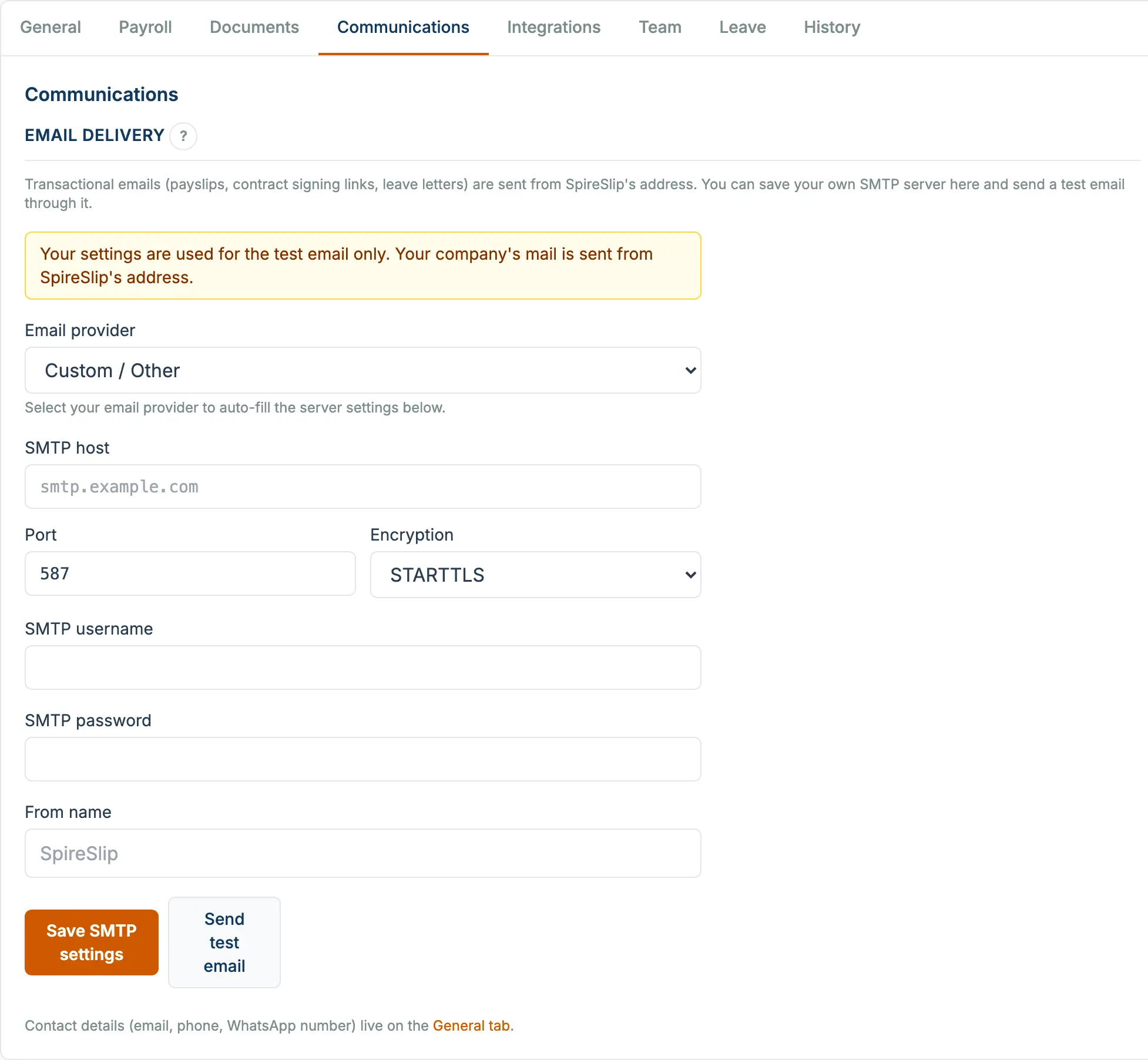
Required fields
- SMTP host, your email provider's outgoing server (e.g.
smtp.gmail.com). - Port, usually 587 for TLS.
- Username, your email address or the username provided by your email host.
- Password, the SMTP password. For Gmail / Google Workspace this is an app password, not your regular account password.
- From name, the friendly name shown alongside the address (e.g. "YourCompany Payroll").
Common provider settings
- Google Workspace, host
smtp.gmail.com, port 587. - Zoho Mail, host
smtp.zoho.com, port 587. - Microsoft 365, host
smtp.office365.com, port 587.
Test connection
Click Send test email to check the settings. A green result means your provider accepted them; a red one shows the provider's error.
What uses your settings
Only the test email. Payslips, contract signing-link invitations, leave-request approvals, HR letters and notifications are sent from noreply@spireslip.com, whether or not you have saved settings here.
Reverting to SpireSlip default
To go back to SpireSlip's own sender, click Clear custom SMTP.